

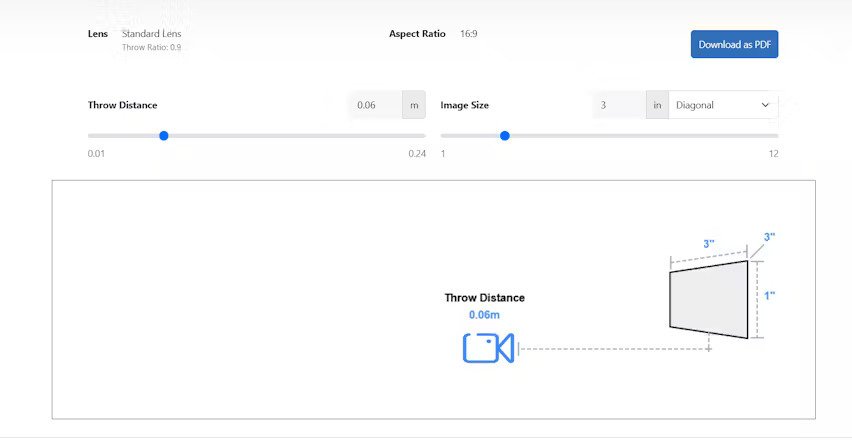
Short throw projectors are designed to project large images from a short distance, making them ideal for classrooms, offices, and small rooms. However, many users face issues where the projector blurry image appears even after setup. Questions like why is my projector blurry despite being at the correct distance or my projector is blurry only when using short throw mode are common. Understanding the specific challenges of short throw optics and learning how to fix blurry projector images ensures sharp, vibrant visuals without distortion.
1. Lens Design Limitations
Short throw projectors use wide-angle lenses to project large images from a short distance. These lenses are more sensitive to focus errors and alignment issues, which can cause blurry edges or a soft image.
Fix: Carefully adjust the focus and consider premium short throw models with higher-quality optics for better clarity.
2. Throw Distance and Image Size
Even minor deviations from the recommended throw distance can result in a projector blurry image. Short throw projectors have less tolerance for distance variation than standard projectors.
Fix: Measure the distance precisely according to the manufacturer’s guidelines and adjust the projector position if necessary.
3. Keystone Correction Overuse
Digital keystone correction can distort pixels, particularly in short throw projectors where the image is already stretched. This can cause the edges to appear soft or blurry.
Fix: Align the projector physically to the screen to minimize keystone adjustments.
4. Ambient Light Influence
Short throw projectors often compete with room lighting due to their proximity to bright surfaces. Ambient light can reduce contrast and make the projector blurry.
Fix: Use blinds, curtains, or shades to control light and improve perceived sharpness.
5. Lens Shift and Alignment
Many short throw projectors offer lens shift capabilities, but improper adjustments can cause uneven focus across the image, making top or bottom areas blurry.
Fix: Adjust lens shift carefully and check the focus at multiple points on the screen.
6. Screen Surface Issues
Short throw projectors require smooth, high-quality screens to prevent glare and scattering. Uneven surfaces or reflective walls can exacerbate blurriness.
Fix: Use a tensioned projection screen or ALR (Ambient Light Rejecting) screen for consistent brightness and sharpness.
7. Dirty or Smudged Lens
Fingerprints, dust, or smudges on the lens can scatter light and cause soft or blurry images. Short throw projectors, due to their lens design, are particularly sensitive to lens dirt.
Fix: Clean the lens regularly with a microfiber cloth and lens-safe solution. Avoid touching the lens directly.
8. Resolution Mismatch
Short throw projectors with fixed native resolution may appear blurry when connected to devices with different output resolutions. This is often the case with laptops or media players.
Fix: Match the input resolution to the projector’s native resolution and adjust scaling in device settings.
9. Focus Drift
Short throw projectors are more sensitive to focus drift caused by heat or prolonged use. Minor thermal expansion can shift focus and make the image blurry.
Fix: Re-focus the projector periodically and allow warm-up before critical presentations.
10. Cable or Signal Issues
Low-quality HDMI, VGA, or USB-C cables can degrade the signal, making a short throw projector blurry. Signal interference is more noticeable on short throw setups because the projector handles high-resolution data over a wide lens.
Fix: Use certified, high-quality cables and check all connections.
11. Software and Graphics Settings
Some devices automatically adjust output settings or apply scaling, which can soften the image and make the projector blurry.
Fix: Disable scaling, set optimal output resolution, and calibrate graphics settings for the projector.
12. Case Example
A school installed a short throw projector in a classroom and noticed a blurry image during lectures. Teachers asked why is my projector blurry when it is so close to the wall. Investigation revealed the projector was slightly off from the recommended throw distance, keystone correction was applied, and the lens had minor dust. After repositioning the projector, minimizing keystone correction, cleaning the lens, and adjusting focus, the image became sharp and readable from all parts of the classroom.
13. Additional Tips
- Verify projector is level and parallel to the screen
- Reduce ambient light to enhance image clarity
- Clean the lens regularly and use lens caps when idle techners
- Use a high-quality screen for consistent brightness
- Recheck focus after warm-up or long sessions
- Test with multiple input sources to rule out device-specific issues
- Update projector firmware for improved signal handling
Quick Fix Checklist
- Adjust throw distance accurately
- Minimize digital keystone correction
- Fine-tune focus using multiple points
- Control ambient light in the room
- Check lens for dust or smudges
- Use high-quality screens for short throw setups
- Match input resolution to projector native resolution
- Verify stable, high-quality cables
- Adjust graphics and scaling settings
- Recheck lens shift and projector alignment
XTEN AV Black Friday Sale Section
XTEN AV has officially launched its biggest Black Friday Sale ever, delivering record breaking discounts for AV designers, integrators, consultants, and project teams worldwide. This exclusive Black Friday Sale 2025 unlocks massive savings on the industry’s leading AV design software, AV drawing tools, AV schematic drawing software, AV proposal automation, and AV project management software — all powered by next generation AI AV technology. With limited time access to AI agents, AI chatbots, automated design workflows, and premium productivity features, XTEN AVs Black Friday offer helps AV businesses scale faster, work smarter, and significantly reduce project costs heading into 2025.
Conclusion
Short throw projectors are convenient for tight spaces, but they are more sensitive to focus, lens alignment, keystone correction, and ambient light. A blurry projector image in these setups can result from lens dirt, improper throw distance, overuse of digital correction, and input resolution mismatches. By following the tips above, including careful focus, alignment, lens maintenance, ambient light control, and correct resolution settings, users can enjoy sharp, bright images across the entire screen. Proper setup and regular maintenance prevent projector blurry issues and maximize the benefits of short throw projection technology.
Read more: https://elovebook.com/read-blog/16645


















Leave a Reply