

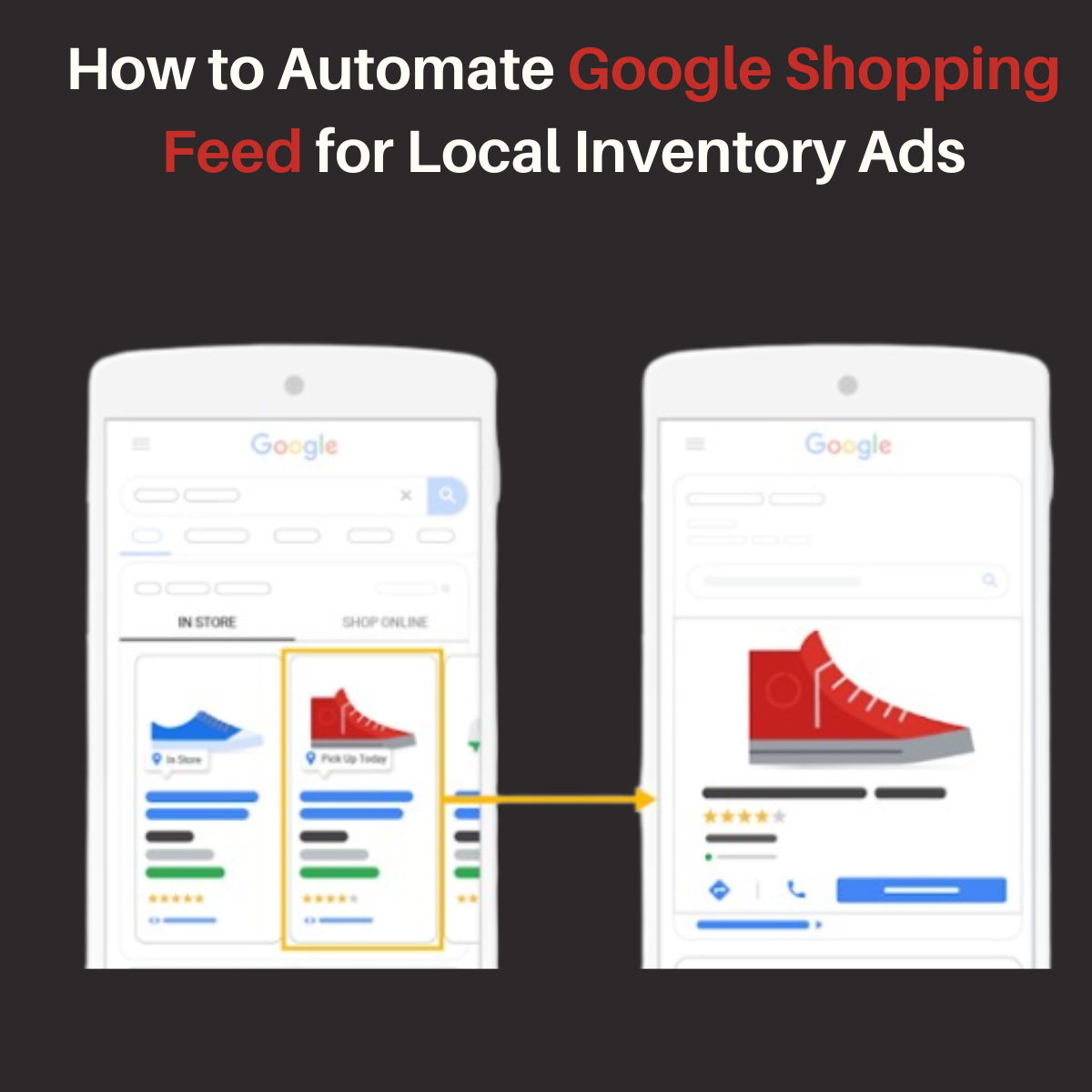
Running local inventory ads can be a game-changer for retailers with both online and physical stores. These ads, powered by Google local inventory ads, allow you to showcase your in-store products to nearby shoppers, driving foot traffic and boosting sales. However, managing your Google Shopping Feed and local inventory feed manually can be time-consuming and prone to errors. That’s where automation comes in.
Automating your Google Shopping Feed for local inventory ads not only saves time but also ensures your product data is accurate and up-to-date. In this blog, we’ll walk you through the steps to automate your Google Shopping Feed and local inventory feed, so you can focus on growing your business.
What is a Google Shopping Feed?
A Google Shopping Feed (also referred to as a shopping feed, Google Shopping product feed, or Google Shopping Data Feed) is a file that contains detailed information about your products. Google uses this data to display your products in Google Shopping ads and other Google services. The feed includes attributes like product titles, descriptions, prices, images, and availability.
When paired with local inventory ads, your Google Shopping Feed becomes even more powerful. Local inventory ads (also known as Google local inventory ads) allow you to showcase your in-store products to nearby shoppers. To make this work, you need a local inventory feed that provides store-specific details, such as in-store availability and location.
Why Automate Your Google Shopping Feed?
Managing your Google Shopping Feed and local inventory feed manually can be a daunting task, especially if you have a large inventory. Here’s why automation is a game-changer:
- Save Time: Automation eliminates the need for manual updates, freeing up your time for other tasks.
- Reduce Errors: Automated systems ensure your feed is accurate and up-to-date, reducing the risk of errors.
- Improve Performance: A well-maintained feed improves the performance of your local inventory ads.
- Real-Time Updates: Automation allows you to update your feed in real time, ensuring your product information is always current.
Steps to Automate Your Google Shopping Feed for Local Inventory Ads
Here’s how to automate your Google Shopping Feed and local inventory feed for local inventory ads:
1. Choose an Automation Tool
- There are several tools available that can help you automate your Google Shopping Feed and local inventory feed. Some popular options include:
- Google Sheets: A free tool that allows you to create and update your feed using formulas and scripts.
- Third-Party Feed Management Tools: Tools like DataFeedWatch, GoDataFeed, and Feedonomics offer advanced automation features.
- E-commerce Platform Integrations: Many e-commerce platforms, such as Shopify and WooCommerce, offer built-in integrations for Google Shopping Feeds.
2. Set Up Your Google Merchant Center Account
- Before you can automate your feed, you need a Google Merchant Center account. This is where you’ll upload your Google Shopping Feed and local inventory feed.
- Ensure your account is verified and linked to your Google Ads account.
3. Create Your Google Shopping Feed
- Using your chosen automation tool, create your Google Shopping Feed. This feed should include:
- Product titles and descriptions.
- Prices and availability.
- High-quality images.
- Unique product identifiers (e.g., GTIN, MPN).
4. Set Up Your Local Inventory Feed
- Your local inventory feed provides store-specific details, such as in-store availability and location. This feed must include:
- Product IDs: These should match the IDs in your Google Shopping Feed.
- Store Codes: Unique identifiers for each of your physical stores.
- Quantity: The number of items available in each store.
- Price: The in-store price of the product (if it differs from the online price).
5. Automate Feed Updates
- Configure your automation tool to update your Google Shopping Feed and local inventory feed in real time. This ensures your product information is always accurate and up-to-date.
- Set up regular syncs between your e-commerce platform and Google Merchant Center to ensure your feeds are always current.
6. Enable Local Inventory Ads in Google Ads
- Once your feeds are set up and automated, enable local inventory ads in your Google Ads account. This involves:
- Connecting your Google Merchant Center and Google Ads accounts.
- Creating a campaign specifically for local inventory ads.
7. Monitor and Optimize Your Campaigns
- Regularly monitor the performance of your local inventory ads and make adjustments as needed. Key metrics to track include:
- Click-through rate (CTR).
- Conversion rate.
- Foot traffic to your stores.
Benefits of Automating Your Google Shopping Feed
Automating your Google Shopping Feed and local inventory feed offers several benefits:
- Increased Efficiency: Automation eliminates the need for manual updates, saving you time and effort.
- Improved Accuracy: Automated systems ensure your feed is accurate and up-to-date, reducing the risk of errors.
- Better Ad Performance: A well-maintained feed improves the performance of your local inventory ads, driving more foot traffic to your stores.
- Real-Time Updates: Automation allows you to update your feed in real time, ensuring your product information is always current.
Best Practices for Automating Your Google Shopping Feed
To get the most out of your automated Google Shopping Feed, follow these best practices:
- Choose the Right Tool: Select an automation tool that meets your needs and integrates seamlessly with your e-commerce platform.
- Keep Your Feed Updated: Regularly update your feed to reflect accurate product information, including availability and pricing.
- Use High-Quality Images: Clear, high-resolution images can significantly improve your ad performance.
- Optimize for Mobile: Many shoppers use their mobile devices to search for local products. Ensure your feed is optimized for mobile by providing clear, concise product information.
- Test and Refine: Continuously test different strategies and refine your feed based on performance data.
Common Challenges and How to Overcome Them
While automating your Google Shopping Feed and local inventory feed, you may encounter some challenges:
- Data Synchronization Issues:
- Problem: Keeping your shopping feeds and local inventory feed in sync can be tricky, especially if you have a large inventory.
- Solution: Use automated feed management tools to ensure real-time updates.
- Feed Errors:
- Problem: Errors in your Google Shopping Feed or local inventory feed can lead to disapproved ads.
- Solution: Regularly review your feeds for errors and fix them promptly.
- Inventory Accuracy:
- Problem: Inaccurate stock levels can frustrate customers and harm your reputation.
- Solution: Implement an inventory management system that updates your local inventory feed in real time.
Conclusion
Automating your Google Shopping Feed for Local Inventory Ads is a smart way to save time, reduce errors, and improve the performance of your campaigns. By leveraging automation tools and following best practices, you can ensure your product data is always accurate and up-to-date, driving more foot traffic to your stores and boosting sales.
Whether you’re new to Google Shopping Feeds or looking to enhance your local inventory ads strategy, automation can help you get started quickly and efficiently. Remember, accuracy and consistency are key to success. So, take the time to set up your feeds correctly, and you’ll soon see the benefits of driving more traffic to your physical stores.
















Leave a Reply